Structure View
When working with large Concord files that contain multiple flows, forms, and triggers, it can be difficult to find what you are looking for by scrolling alone.
The Structure View provides a tree-based outline of your file, allowing you to instantly visualize the structure and navigate to specific definitions.
Overview
The Structure View displays a hierarchical tree of:
- Flows
- Forms
- Triggers
- Public Flows
- Configuration settings
It updates in real-time as you edit the file.
How to Use
Opening the Tool Window
- Open any
.concord.yamlfile. - Open the Structure tool window:
- Menu:
View | Tool Windows | Structure - Shortcut: Alt7
- Menu:
Using the Popup
For even faster navigation, you can use the Structure popup without leaving the editor:
- Press CtrlF12.
- Type part of a flow name to filter the list.
- Press
Enterto jump to the selected element.
Features
- Filter & Sort: You can sort elements alphabetically or by occurrence.
- Autoscroll: Enabling "Autoscroll from Source" will automatically highlight the current flow in the tree as you move your cursor in the editor.
- Icons: Distinct icons for flows, forms, and triggers help you recognize element types at a glance.
Example
Given the following file:
flows:
  main:
    - log: "Starting..."

  deploy:
    - call: setupEnvironment

triggers:
  - github:
      entryPoint: main

forms:
  userLogin:
    - name: username
Navigating the File Structure
The Structure View provides a clear, hierarchical overview of all elements in your file:
Open the Structure tool window and click on any flow to navigate.
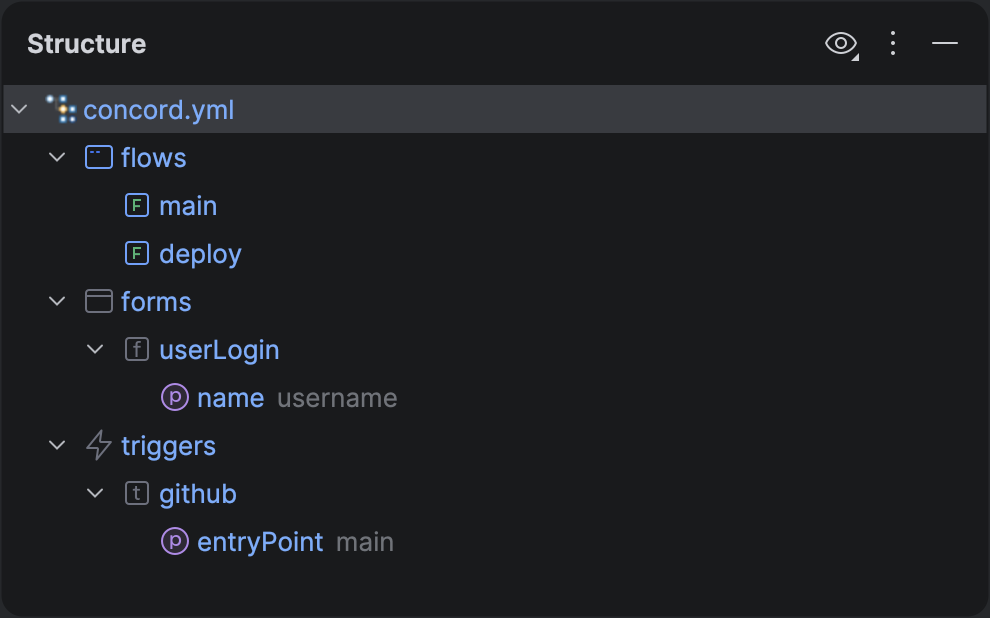
Structure View showing flows, triggers, and forms for the current file.
This feature is especially useful for monorepo setups where a single file might define dozens of flows for different lifecycle stages (build, test, deploy).