Dependencies
Concord flows use task provided by external Java libraries (plugins). These are declared as Maven dependencies
in your concord.yaml. The plugin understands these declarations and uses them to power features like
task name completion and the Dependencies view in the tool window.
How it Works
When a project is opened, the plugin:
- Collects all dependency declarations from
configuration.dependencies,configuration.extraDependencies, and the same sections inside profiles. - Resolves each dependency to a local JAR file using your Maven local repository (
~/.m2/repository). If a JAR is not found locally and the IntelliJ Maven plugin is available, it will attempt to download it. - Extracts task names by scanning
@Namedannotations inside the JARs (via theMETA-INF/sisu/javax.inject.Namedindex). - Provides the extracted names as completion suggestions for task: values, scoped to the correct project.
Supported Dependency Locations
The plugin looks for dependency lists in the following YAML paths:
configuration:
  dependencies:
    - "mvn://com.walmartlabs.concord.plugins.basic:smtp-tasks:2.8.0"
  extraDependencies:
    - "mvn://com.walmartlabs.concord.plugins:git:2.12.0"

profiles:
  production:
    configuration:
      dependencies:
        - "mvn://com.walmartlabs.concord.plugins:s3:1.5.0"
Task Name Completion
Once dependencies are resolved, the plugin provides autocompletion for the task: field in flow steps:
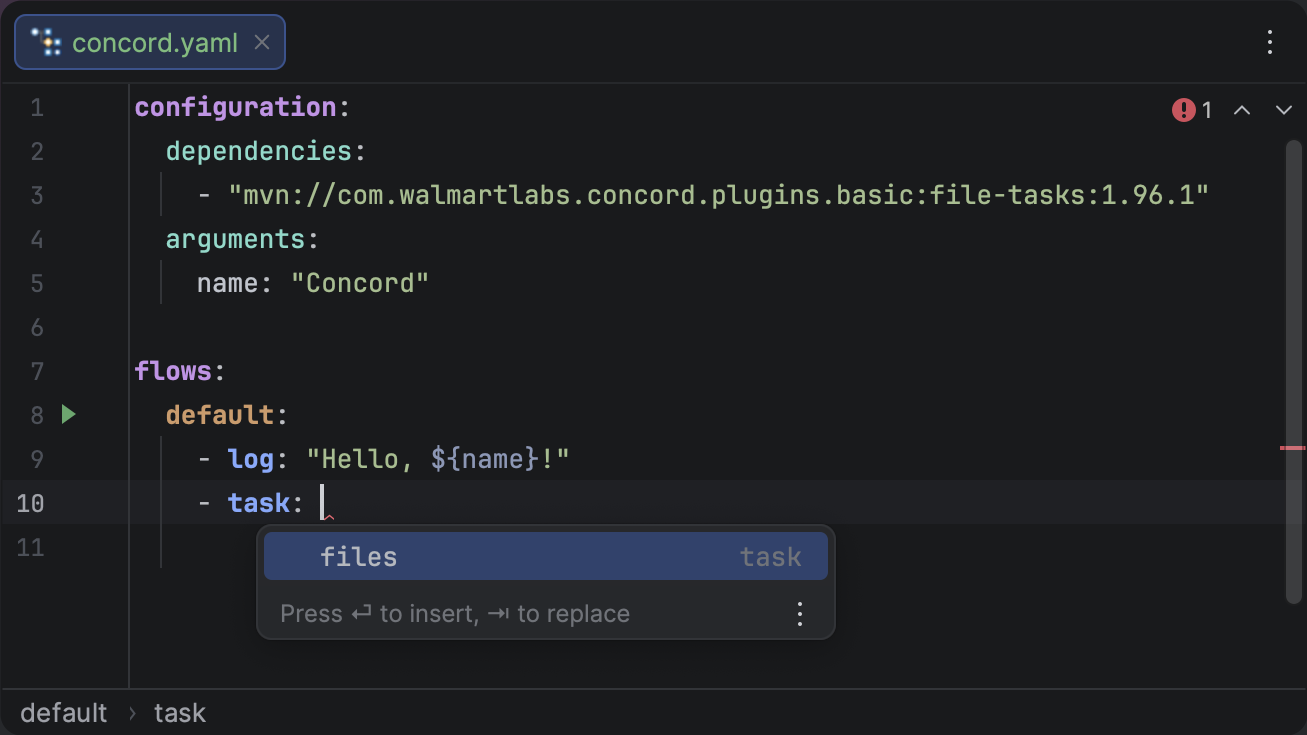
Context-aware autocompletion for task names extracted from Maven dependencies.
Task name suggestions are scope-aware: each scope only shows tasks from its own dependencies.
Press CtrlSpace in a task: value to see all available task names for the current scope.
Error Reporting
When a dependency cannot be resolved — for example, due to incorrect coordinates or an unavailable artifact — the plugin reports the problem in three places simultaneously.
Inline Editor Errors
Each unresolvable mvn:// string is highlighted directly in the editor as an inspection error.
The error message includes the reason for the failure (e.g. "artifact not found").
Invalid dependency format (not matching the mvn://group:artifact:version pattern) is also flagged.
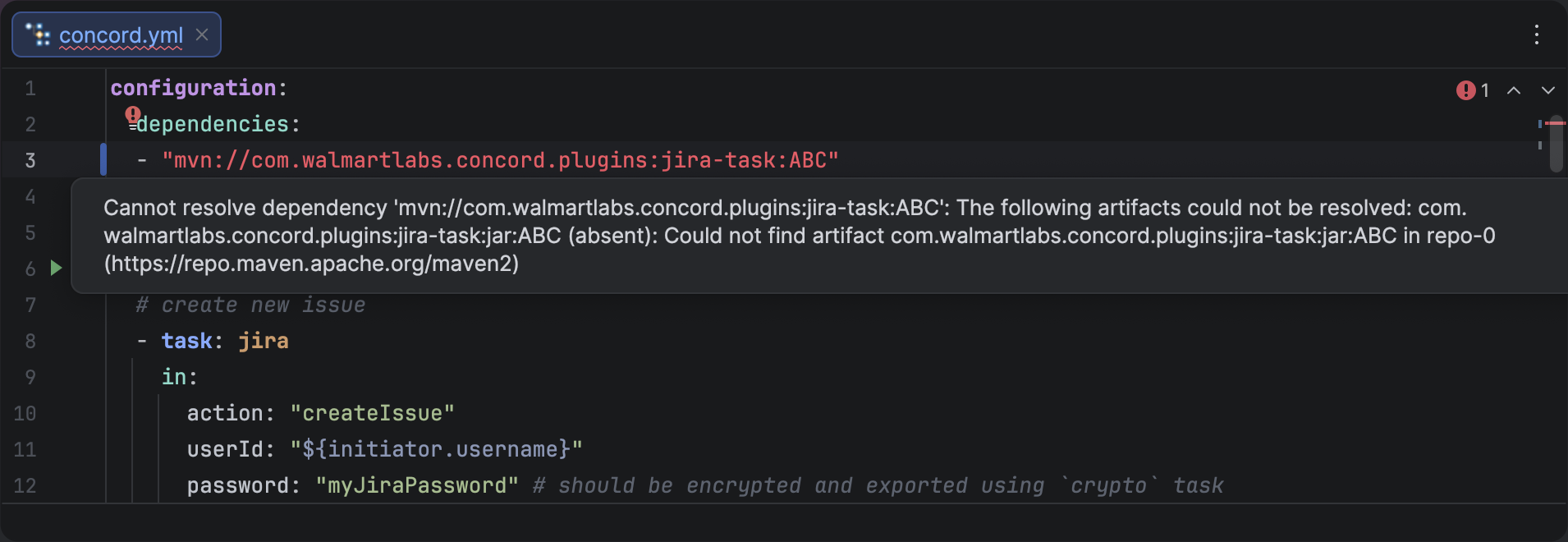
Unresolvable dependency string highlighted with an error and a tooltip showing the reason.
You can configure the severity of this inspection (Error, Warning, etc.) in Settings | Editor | Inspections | Concord | Unresolved dependency.
Build Sync Tab
Dependency resolution progress and errors are reported in the Build tool window under the Sync tab. Clicking an error navigates to the exact line in the YAML file where the dependency is declared.
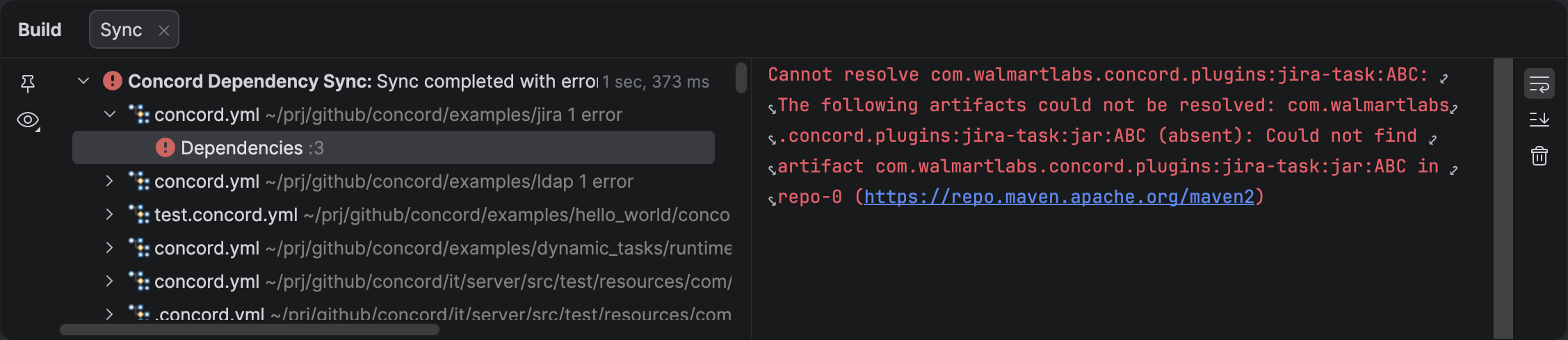
Build tool window showing dependency resolution errors with clickable file links.
Additionally, files that contain unresolved dependencies are marked as problem files in the Project tree (file names displayed in red), making it easy to spot affected files at a glance.
Dependency Change Tracking
The plugin monitors your dependency declarations for changes. When you add, remove, or modify a dependency
in configuration.dependencies (or extraDependencies), a floating toolbar appears at the top of the editor
with two actions:
- Refresh — Triggers a background reload: re-resolves JARs and re-extracts task names.
- Dismiss — Hides the notification until the next dependency change.
The initial load happens automatically when the project is opened. After that, the plugin only prompts for a reload when actual dependency values change (whitespace-only edits are ignored).
If the IntelliJ Maven plugin is installed, the plugin uses its configured repositories and local repository path.
Otherwise, it falls back to the default ~/.m2/repository location.