Code Completion
The Concord IntelliJ Plugin provides intelligent, context-aware code completion for every part of your Concord flows. It understands the Concord schema and your project structure to suggest relevant keys, steps, and parameters.
YAML Key Completion
As you type in a .concord.yaml file, the plugin suggests valid keys based on your current location:
- Top-level sections: flows, configuration, triggers, forms, etc.
- Step types: Inside a flow, it suggests call, log, task, checkpoint, if, and others.
- Call parameters: When using a call step, the plugin suggests input parameters defined in the target flow's Documentation Block.
Task Name Completion
When writing a task step, the plugin suggests available task names extracted from your project's Maven dependencies:
- The plugin resolves JARs declared in
configuration.dependenciesandconfiguration.extraDependencies. - Task names are extracted from
@Namedannotations inside the dependency JARs. - Suggestions are scope-aware — each scope only shows tasks from its own dependencies.
configuration:
  dependencies:
  - "mvn://com.walmartlabs.concord.plugins.basic:smtp-tasks:2.35.0"

flows:
  main:
    - task: sm  # Ctrl+Space suggests: smtp
      in:
        to: "user@example.com"
If you add a new dependency and don't see its tasks in completion, use the floating Refresh toolbar that appears in the editor, or click Refresh in the Concord tool window. See Dependency Change Tracking for details.
Flow Documentation Completion
When writing structured flow documentation (/** ... */), the plugin helps you define your parameters correctly:
- Types: Suggests valid Concord types like string, int, boolean, object, and their array counterparts (string[], etc.).
- Keywords: Suggests keywords like mandatory, required, and optional after the parameter type.
How to Use
Simply start typing, and the completion list will appear automatically.
- Force Open: Press CtrlSpace to show suggestions at any time.
- Select Item: Use the arrow keys to navigate and
EnterorTabto insert the selected item. - Documentation: While the completion list is open, press CtrlQ to see a quick description of the selected key (if available).
Example
Autocomplete in Action
Writing a call step becomes much faster as the plugin suggests available flows and their input parameters:
Type cal and press Enter to create a call step, then use CtrlSpace to see available flow names.
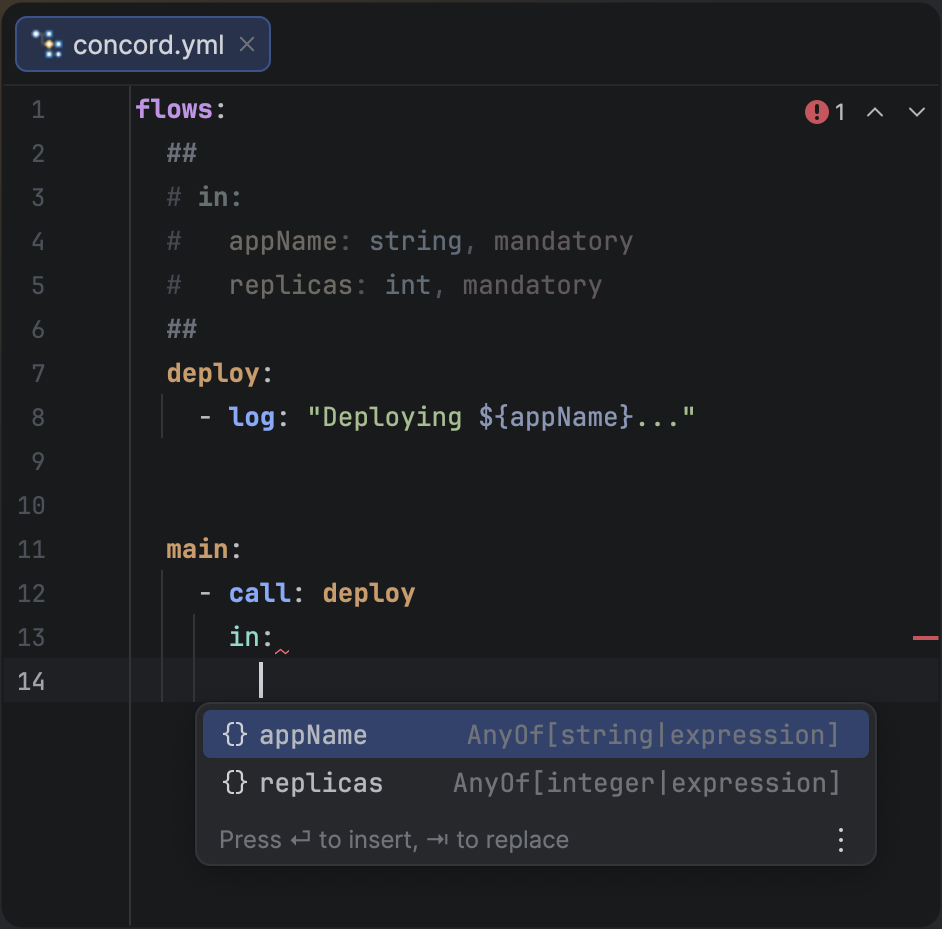
Context-aware completion for Concord YAML keys and flow names.
The plugin is smart enough to know that mandatory and optional only make sense in certain parts of a documentation block, filtering out irrelevant suggestions.