Code Completion
The Concord IntelliJ Plugin provides intelligent, context-aware code completion for every part of your Concord flows. It understands the Concord schema and your project structure to suggest relevant keys, steps, and parameters.
YAML Key Completion
As you type in a .concord.yaml file, the plugin suggests valid keys based on your current location:
- Top-level sections: flows, configuration, triggers, forms, etc.
- Step types: Inside a flow, it suggests call, log, task, checkpoint, if, and others.
- Call input parameters: When using a call step, the plugin suggests input parameter names in the in block defined in the target flow's Documentation Block.
- Call output parameters: When using a call step, the plugin suggests output parameter names in the out field defined in the target flow's Documentation Block.
- Task parameters: When using a task step, the plugin suggests input parameters and their values from built-in task schemas. See Task Parameter Completion below.
Task Name Completion
When writing a task step, the plugin suggests available task names extracted from your project's Maven dependencies:
- The plugin resolves JARs declared in
configuration.dependenciesandconfiguration.extraDependencies. - Task names are extracted from
@Namedannotations inside the dependency JARs. - Suggestions are scope-aware — each scope only shows tasks from its own dependencies.
configuration:
  dependencies:
  - "mvn://com.walmartlabs.concord.plugins.basic:smtp-tasks:2.35.0"

flows:
  main:
    - task: sm  # Ctrl+Space suggests: smtp
      in:
        to: "user@example.com"
If you add a new dependency and don't see its tasks in completion, use the floating Refresh toolbar that appears in the editor, or click Refresh in the Concord tool window. See Dependency Change Tracking for details.
Task Parameter Completion
When writing the in block of a task step, the plugin suggests parameter names and values from built-in task schemas:
- Parameter keys: Suggests valid input parameter names for the given task.
- Enum values: For parameters that accept a fixed set of values (e.g.
action,method), suggests the allowed options. - Conditional parameters: Suggestions adapt based on already specified values. For example, after setting
action: start, only parameters relevant to thestartaction are suggested.
flows:
  main:
    - task: concord
      in:
        action: start
        # Ctrl+Space here suggests parameters for the "start" action:
        # repo, org, project, payload, ...
Call Output Parameter Completion
When writing the out field of a call step, the plugin suggests output parameter names from the target flow's Documentation Block. This works for both scalar and array forms of the out field.
The completion popup shows:
- Parameter name — the output variable name
- Type — shown on the right side (e.g.
int,string)
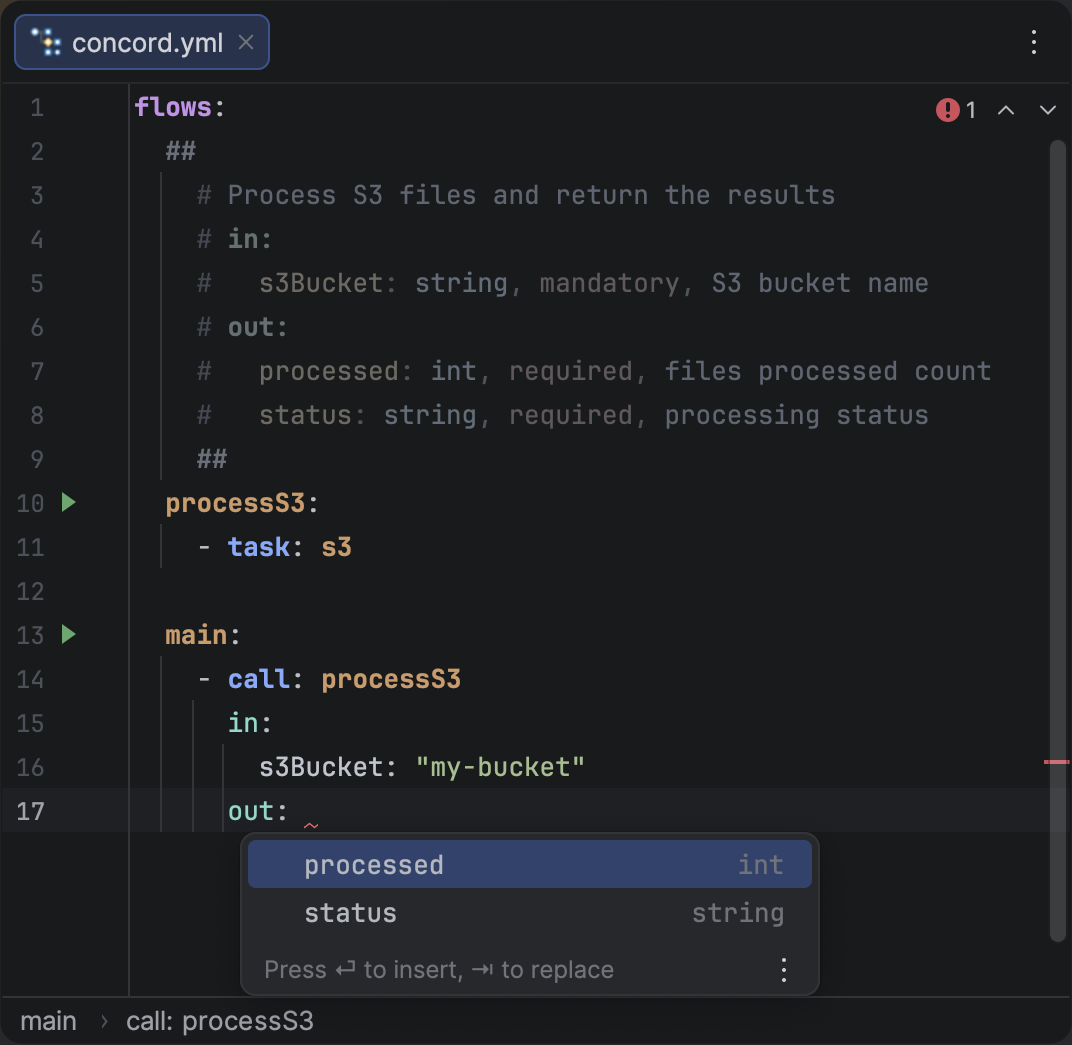
Completion popup suggesting output parameter names from the target flow's documentation block.
Expression Variable Completion
Inside ${...} expressions, the plugin suggests variable names that are in scope at the current cursor position. Press CtrlSpace to trigger completion.
Each suggestion displays:
- A variable icon for quick visual identification
- The variable name
- The source label after the name (e.g.
built-in,set,flow in), so you know where the variable comes from - The type on the right side (e.g.
string,object,integer) for variables that have schema information — built-in variables, loop variables, and flow input parameters all show their types
The following variable sources are recognized:
- built-in — Concord runtime variables like
txId,workDir,initiator,processInfo, etc. These have full type information, including sub-fields for object-type variables. - argument — Variables declared in
configuration.arguments. - flow in — Input parameters defined in the flow's Documentation Block. The type from the doc block is shown (e.g.
string,int,object). - set — Variables assigned by set steps earlier in the flow.
- step out — Variables captured by
outfields of preceding steps. - loop — Loop iteration variables (
item,items,itemIndex) available inside loop steps. These show their types (integerforitemIndex,arrayforitems). - task result — The implicit
resultvariable available inside theoutblock of a task step.
Completion is context-aware — it only suggests standalone variable names at the top level, not inside function names. After a dot, the plugin switches to property completion instead.
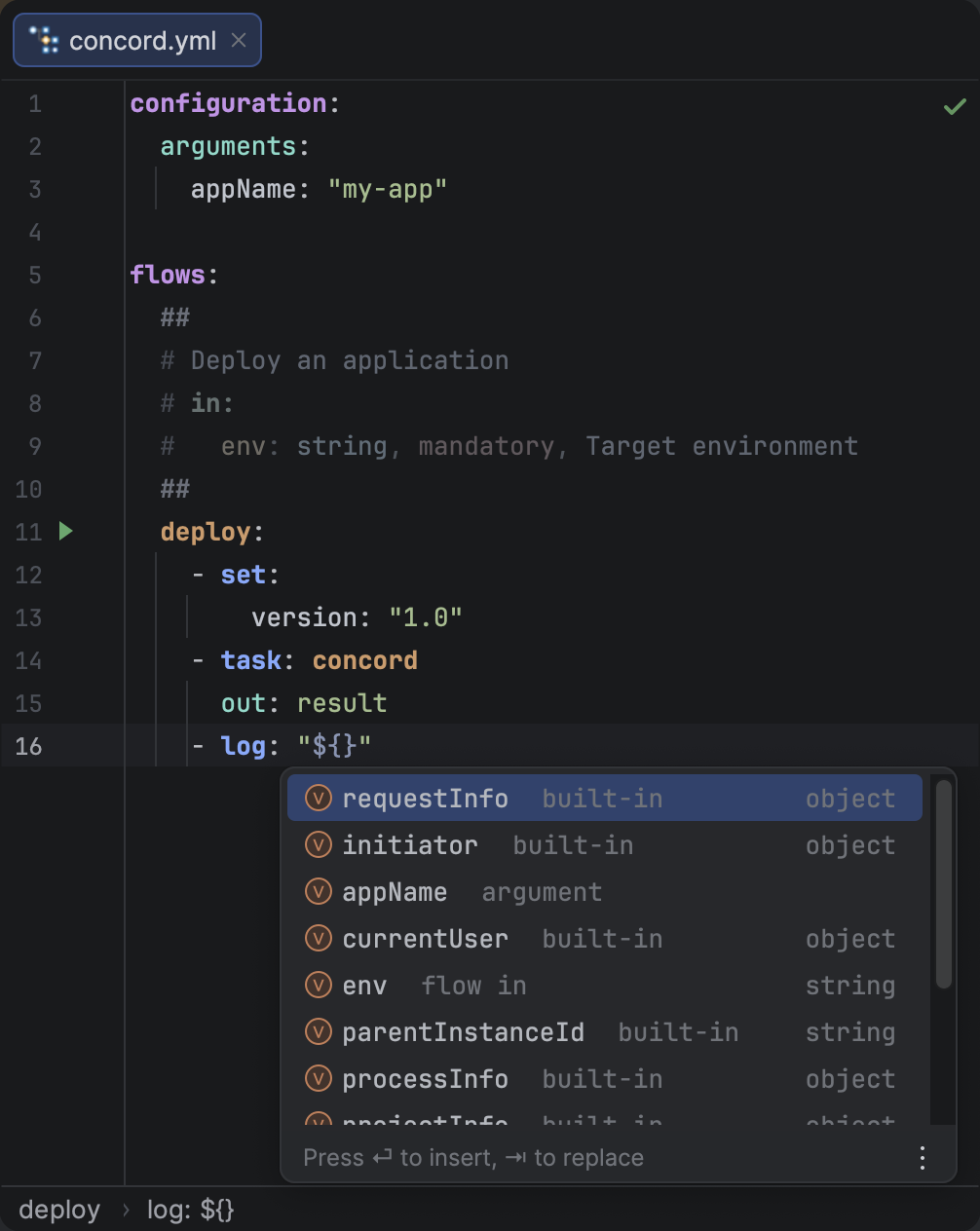
Variable completion inside an EL expression, showing variable icons, source labels, and types.
Expression Function Completion
Inside ${...} expressions, the plugin suggests Concord's built-in functions alongside variables. Press CtrlSpace to trigger completion.
Each suggestion displays:
- A method icon to distinguish functions from variables
- The function name
- The signature after the name (e.g.
(string variableName)) - The return type on the right side (e.g.
boolean,string,object)
The following built-in functions are available:
| Function | Return | Description |
|---|---|---|
allVariables() | object | Returns all current process variables as a Map |
currentFlowName() | string | Returns the name of the currently executing flow |
evalAsMap(value) | object | Evaluates an expression and returns the result as a Map |
hasFlow(name) | boolean | Checks if a flow with the given name exists |
hasNonNullVariable(variableName) | boolean | Checks if a variable exists and is not null |
hasVariable(variableName) | boolean | Checks if a variable exists (supports dot-separated paths) |
isDebug() | boolean | Returns true if started with the debug flag |
isDryRun() | boolean | Returns true if started in dry-run mode |
orDefault(name, defaultValue) | any | Returns variable value or default if not set |
throw(message) | any | Throws an exception with the given message |
uuid() | string | Returns a random UUID string |
When you accept a function from the completion list, the plugin automatically inserts parentheses. For functions that take parameters, the caret is placed inside the parentheses so you can start typing the argument immediately. For no-argument functions, the caret is placed after the closing parenthesis.
flows:
  main:
    - if: ${hasVariable(<caret>)}    # caret inside parens
    - log: "${uuid()<caret>}"        # caret after parens
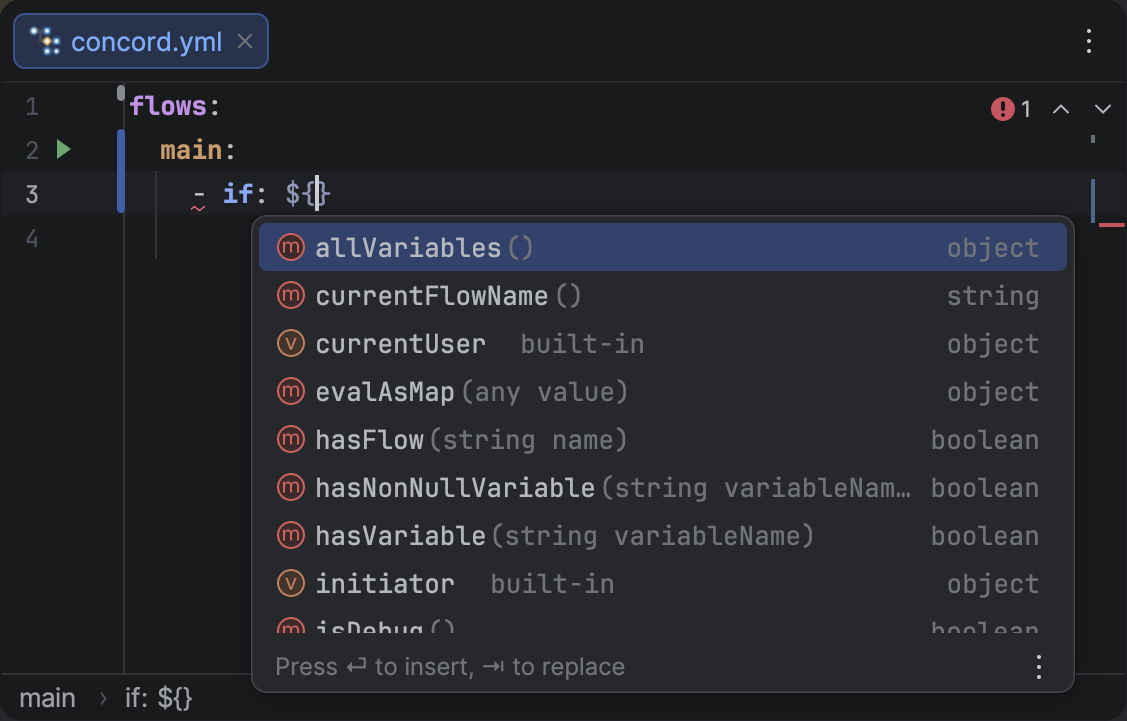
Function completion inside an EL expression, showing method icons, signatures, and return types.
Function completion only appears at the top level of an expression — not after a dot. After a dot, the plugin shows task method completion or property completion instead.
Expression Task Name Completion
Inside ${...} expressions, the plugin suggests task names from your project's Maven dependencies alongside variables and functions. This lets you reference tasks directly in expressions without having to remember exact names.
Each suggestion displays:
- A class icon to distinguish tasks from variables and functions
- The task name
- A
tasklabel after the name
Task name completion is scope-aware — each scope only shows tasks from its own dependencies, just like task name completion in task: fields.
configuration:
  dependencies:
  - "mvn://com.walmartlabs.concord.plugins:datetime-task:2.14.0"

flows:
  main:
    - log: "${date<caret>}"  # suggests: datetime
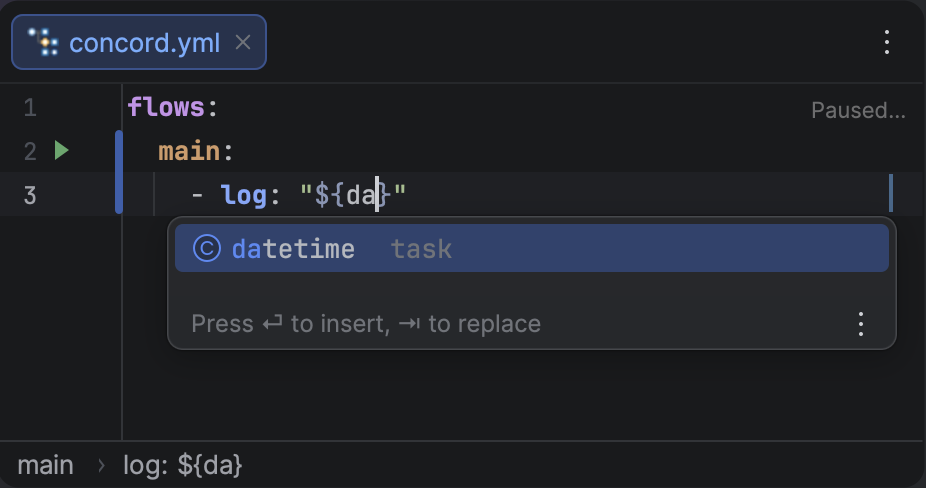
Task name completion inside an EL expression, showing task icons and labels.
Expression Task Method Completion
When you type a dot after a task name inside a ${...} expression, the plugin suggests the public methods available on that task. Press CtrlSpace to trigger completion.
Each suggestion displays:
- A method icon for quick visual identification
- The method name
- The parameter signature after the name (e.g.
(any, string)) - The return type on the right side (e.g.
string,object,void)
Method signatures are extracted from the task's dependency JAR at the bytecode level, so they reflect the actual Java API of the task.
When you accept a method from the completion list, the plugin automatically inserts parentheses. For methods that take parameters, the caret is placed inside the parentheses. For no-argument methods, the caret is placed after the closing parenthesis.
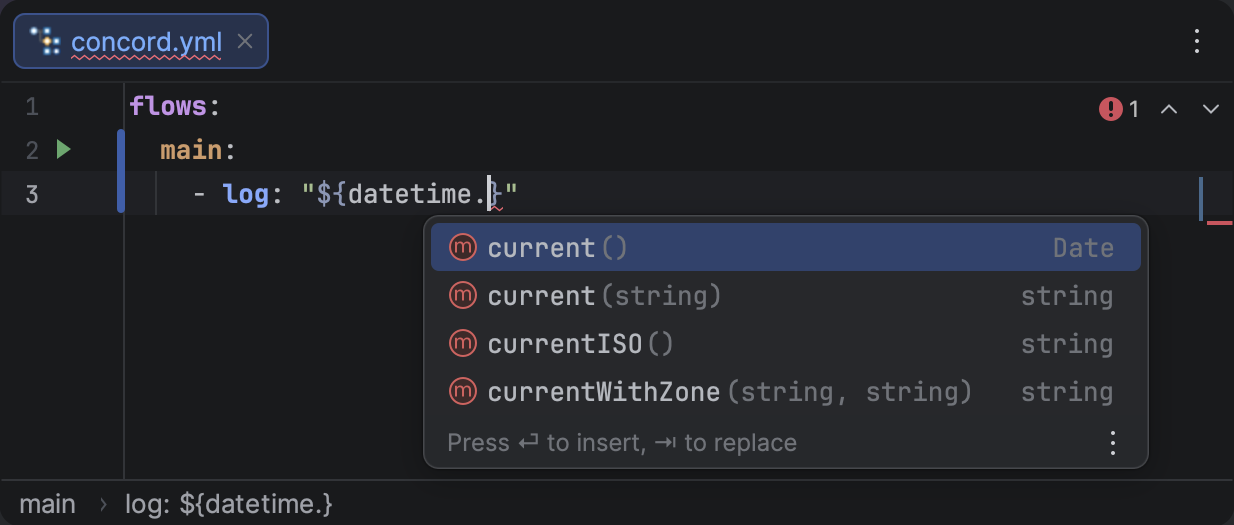
Task method completion after a dot, showing method names, parameter signatures, and return types.
Task method completion only works on the first dot after a task name — not on chained calls like datetime.current().something.
Expression Property Completion
When you type a dot after a variable name inside a ${...} expression, the plugin suggests the available properties of that variable. Press CtrlSpace to trigger completion.
Each suggestion displays:
- A property icon for quick visual identification
- The property name
- The type on the right side (e.g.
string,integer,object)
Property completion works for any variable whose type is known:
- Built-in objects — variables like
initiator,projectInfo, andprocessInfohave full property schemas. For example,${initiator.}suggestsusername,displayName,email,groups, andattributes. - Set step objects — variables assigned by set steps with nested mappings. For example, after setting
config.hostandconfig.port,${config.}suggestshostandport. - Task result — the
resultvariable inside a task'soutblock. For example,${result.}suggests properties defined in the task schema's output section (e.g.ok,body). - Deep nesting — property completion works at any depth. After
${config.db.}, it suggests the properties of thedbsub-object.
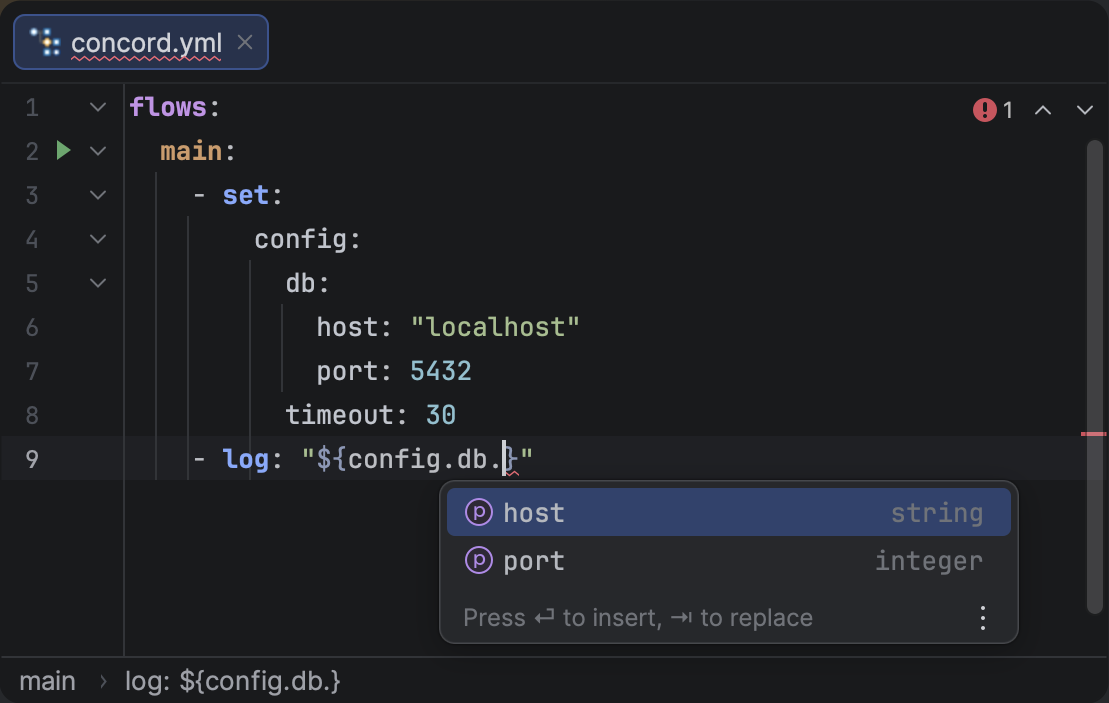
Property completion after a dot in an EL expression, showing available sub-fields with types.
Property completion does not fire after bracket access (items[0].) or method calls (config.toString().), since the resulting type cannot be statically determined from the YAML structure.
Flow Documentation Completion
When writing structured flow documentation (/** ... */), the plugin helps you define your parameters correctly:
- Types: Suggests valid Concord types like string, int, boolean, object, and their array counterparts (string[], etc.).
- Keywords: Suggests keywords like mandatory, required, and optional after the parameter type.
Quick Documentation in Completion
While the completion list is open, you can preview the documentation for the selected item without accepting it. Press CtrlQ to open a documentation popup next to the completion list.
YAML Key Documentation
Selecting a key like flows, configuration, task, or call in the completion list shows a short description of that key's purpose.
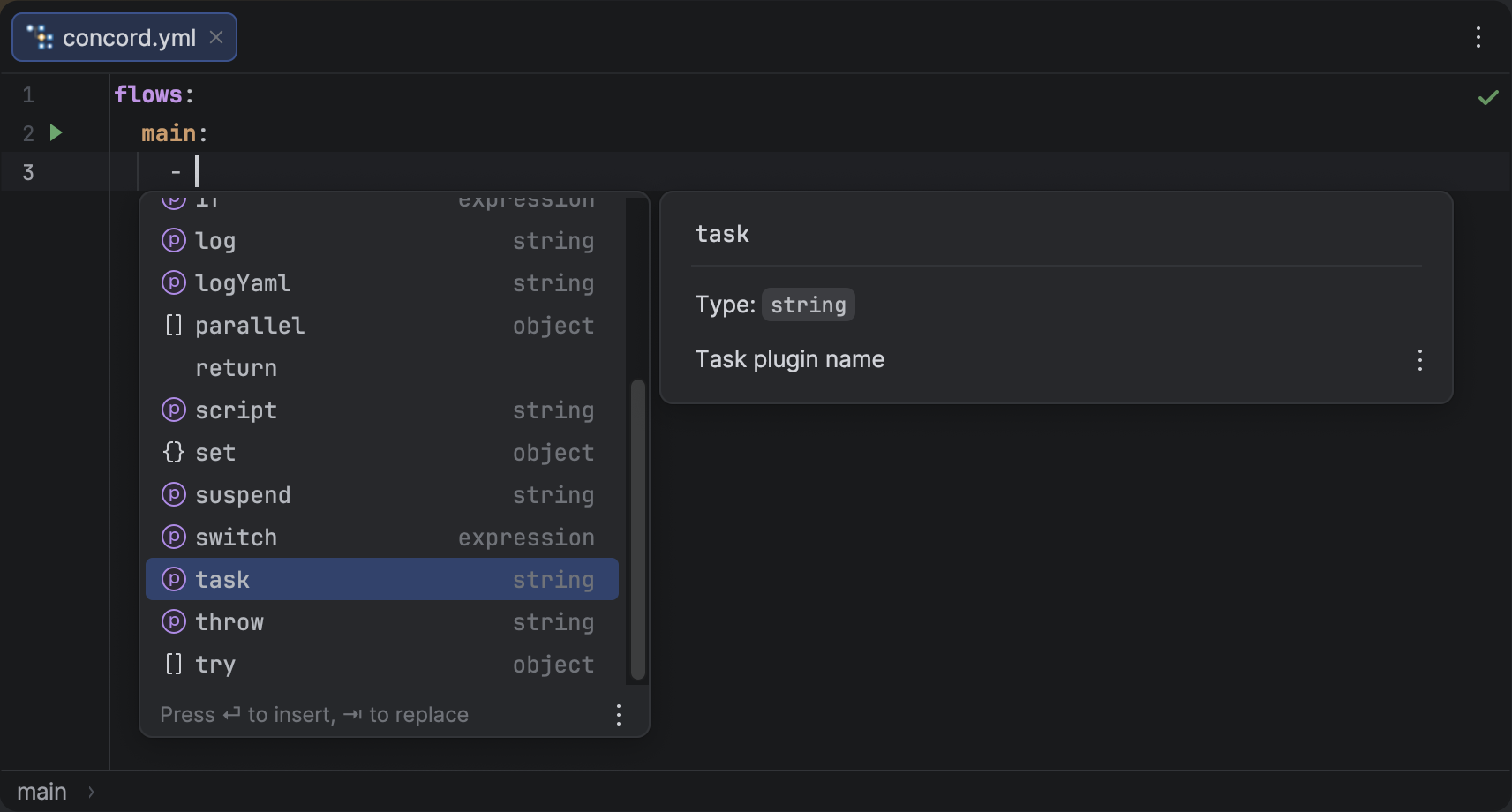
Quick documentation for a YAML key selected in the completion list.
Task Name Documentation
When completing a task name, the documentation popup shows the full task description along with its input and output parameters, types, and descriptions — the same information you would see when hovering over a task name in the editor.
flows:
  main:
    - task: co  # Ctrl+Space, then Ctrl+Q on "concord"
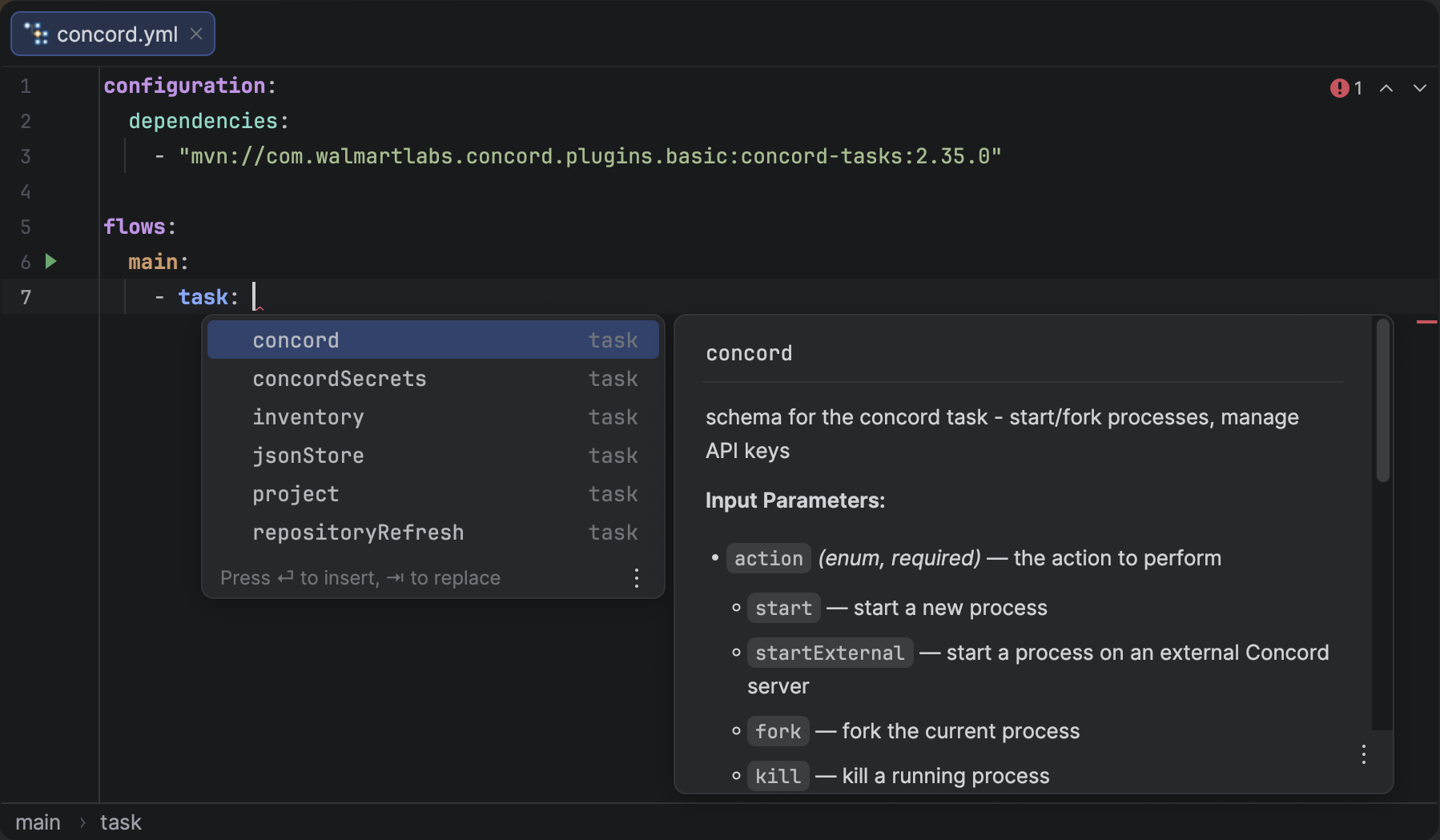
Quick documentation for a task name showing description, input and output parameters.
Task Parameter Documentation
When completing parameters inside a task's in block, the documentation popup shows the type and description of the selected parameter.
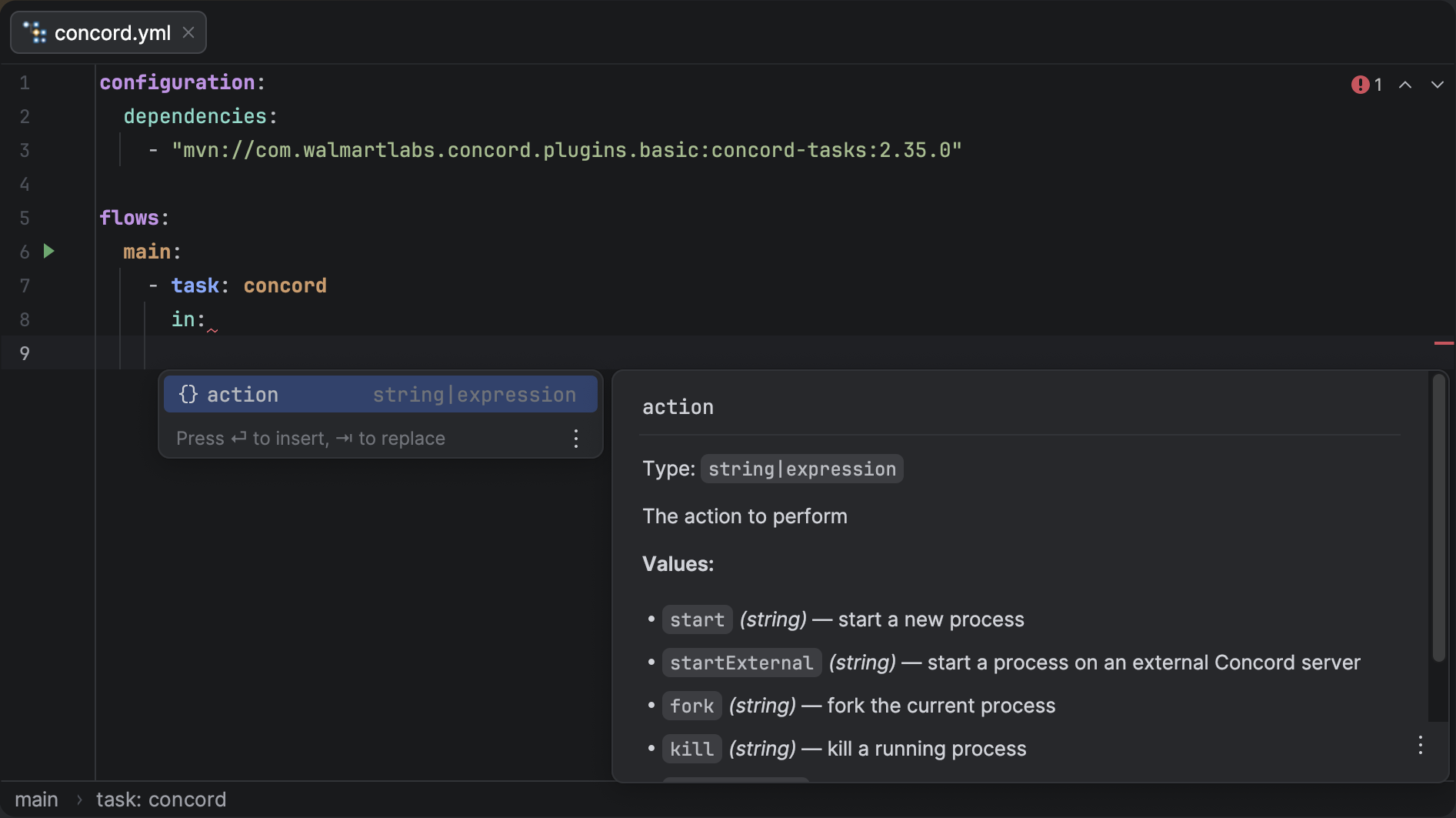
Quick documentation for a task parameter showing its type and description.
Variable Documentation
When completing variables inside ${...} expressions, the documentation popup shows details about the selected variable:
- Type — the variable's data type (e.g.
string,object,integer) - Description — a short explanation of the variable's purpose
- Sub-fields — for object-type variables (like
initiator,projectInfo,processInfo), the popup lists all available fields with their types and descriptions - Source — where the variable comes from (e.g. "built-in variable", "flow input parameter", "set step variable")
This is especially useful for built-in object variables. For example, selecting initiator in the completion list and pressing CtrlQ shows its sub-fields (username, displayName, email, groups, attributes) with their types and descriptions -- so you can see exactly what properties are available without leaving the editor.
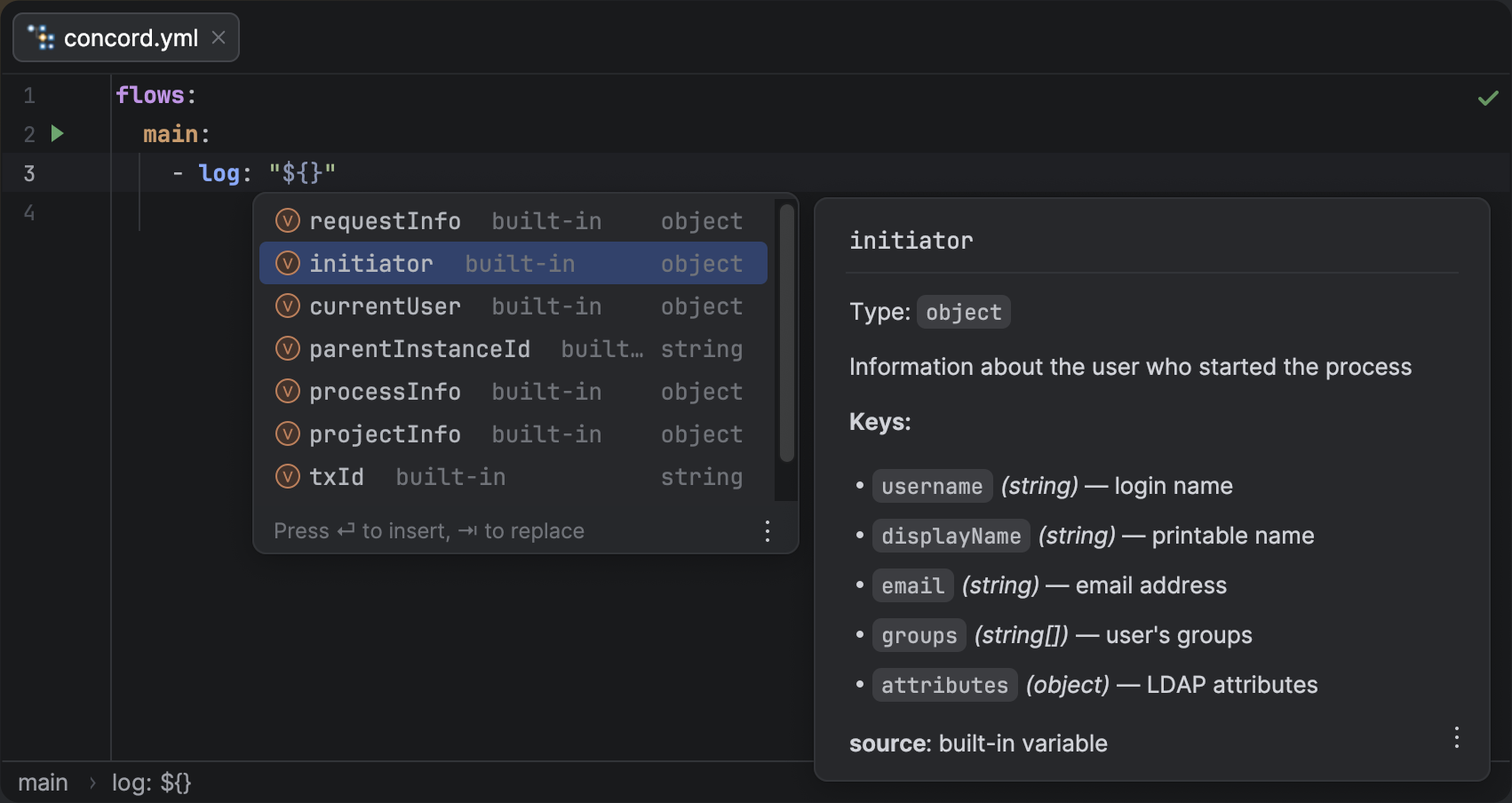
Quick documentation for a built-in variable showing its type and description.
Function Documentation
When completing built-in functions inside ${...} expressions, the documentation popup shows:
- Description — what the function does
- Parameters — each parameter with its type (when the function takes arguments)
- Returns — the return type
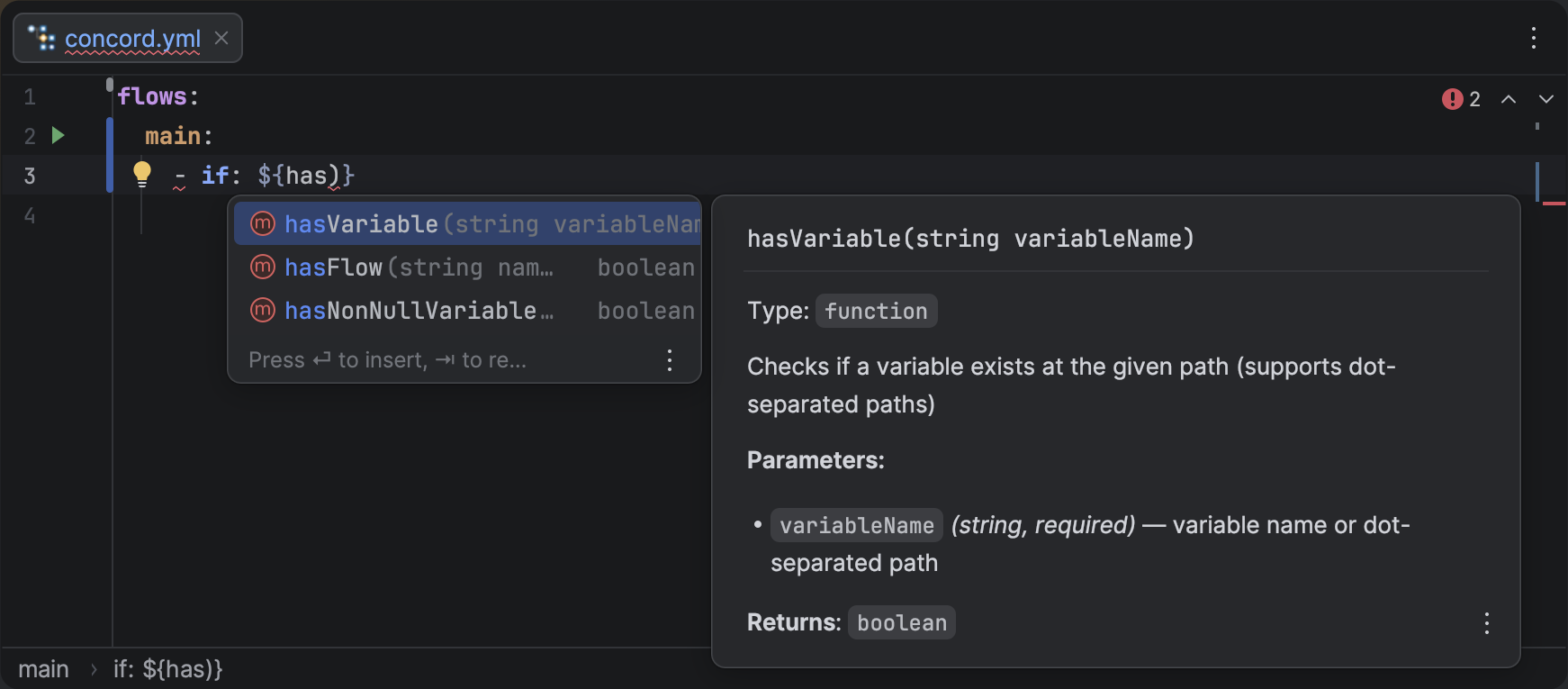
Quick documentation for a built-in function showing its description, parameters, and return type.
Task Name Documentation (EL)
When completing task names inside ${...} expressions, the documentation popup shows the same task documentation
as for task name completion in task: fields — the full task description with input and output parameters.
For tasks without a built-in schema, a generic "Concord task" description is shown.
Task Method Documentation
When completing task methods after a dot (e.g., ${datetime.}), the documentation popup shows details about the
selected method:
- Description — which task the method belongs to
- Parameters — each parameter with its inferred type
- Returns — the return type
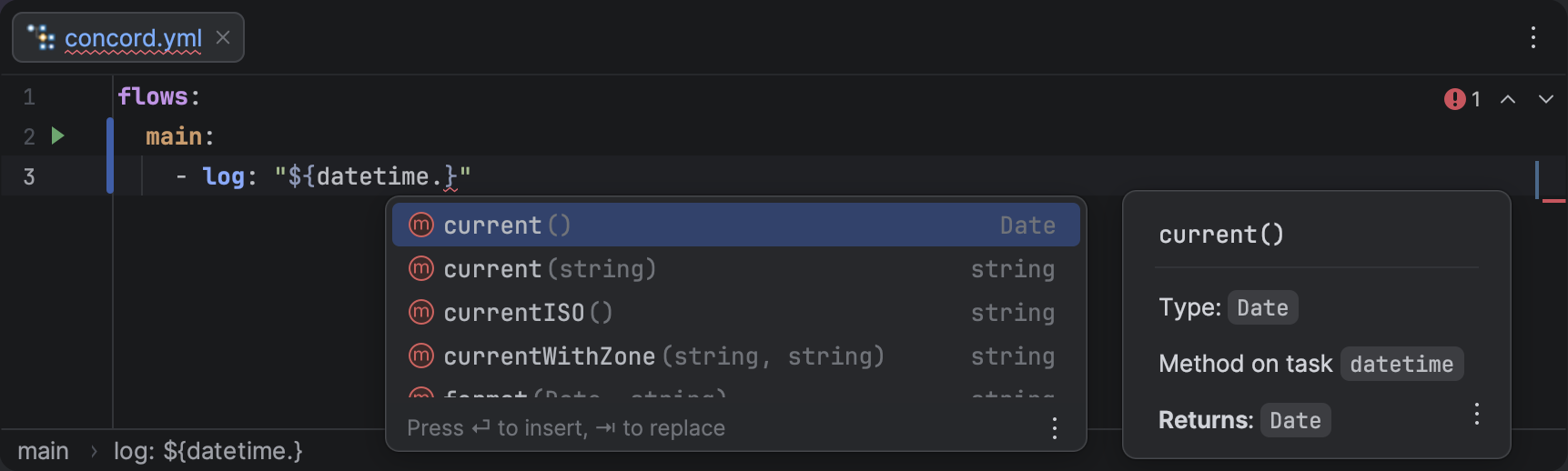
Quick documentation for a task method showing parameters and return type.
Property Documentation
When completing properties after a dot (e.g., ${initiator.}), the documentation popup shows details about the selected property:
- Type — the property's data type
- Description — a short explanation of the property's purpose (when available from the schema)
- Sub-fields — for nested object properties, the popup lists their fields
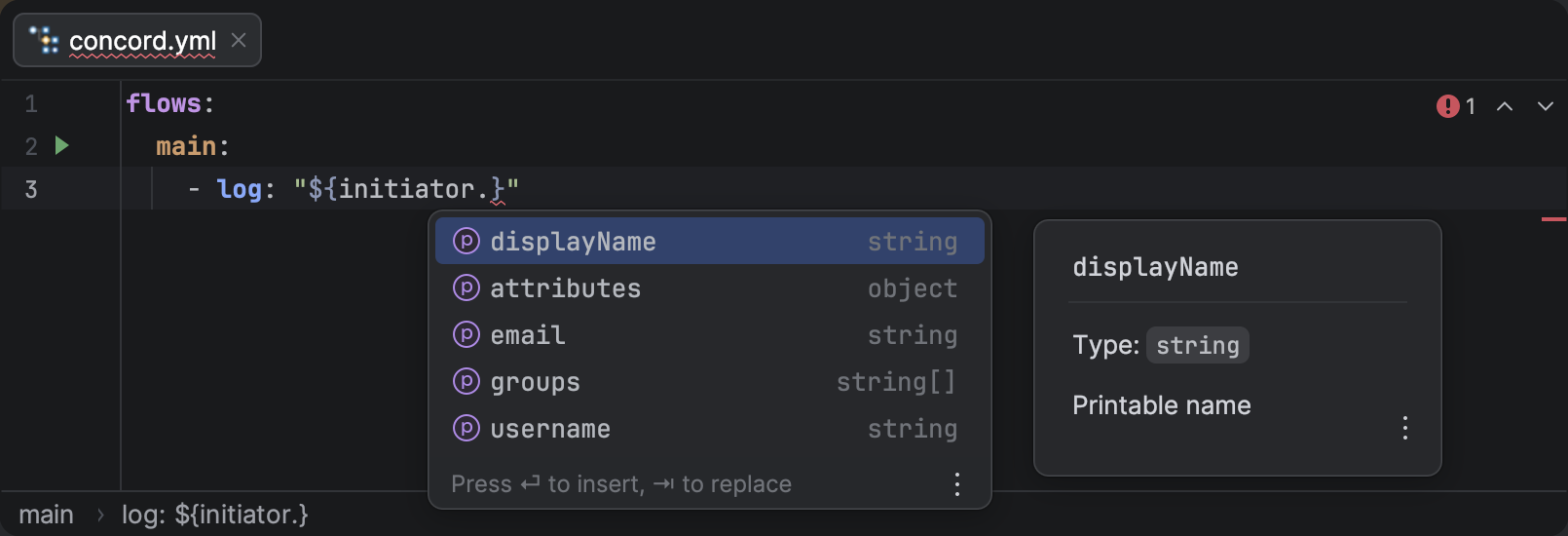
Quick documentation for a property in the completion list, showing its type and description.
How to Use
Simply start typing, and the completion list will appear automatically.
- Force Open: Press CtrlSpace to show suggestions at any time.
- Select Item: Use the arrow keys to navigate and
EnterorTabto insert the selected item. - Documentation: While the completion list is open, press CtrlQ to see a quick description of the selected key (if available).
Example
Autocomplete in Action
Writing a call step becomes much faster as the plugin suggests available flows and their input and output parameters:
Type cal and press Enter to create a call step, then use CtrlSpace to see available flow names.
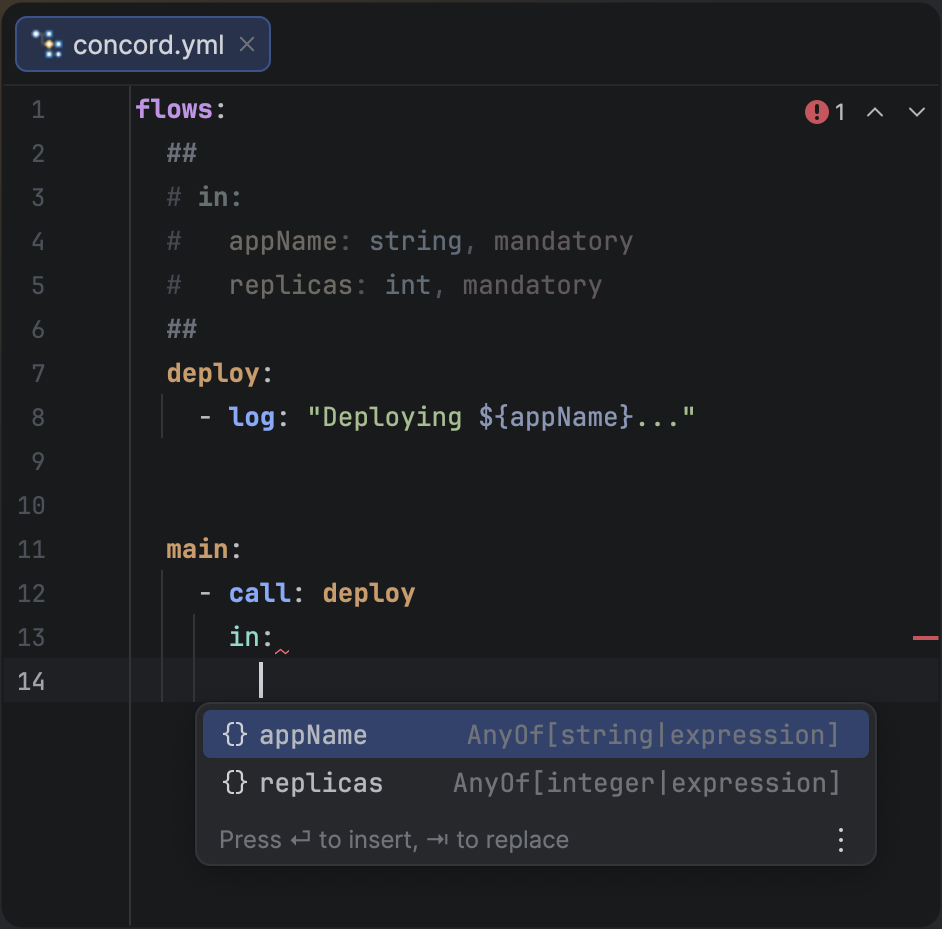
Context-aware completion for Concord YAML keys and flow names.
The plugin is smart enough to know that mandatory and optional only make sense in certain parts of a documentation block, filtering out irrelevant suggestions.