Hover Documentation
The Concord IntelliJ Plugin provides Quick Documentation popups that show contextual information about flows, tasks, and parameters without leaving the editor. Hover over any element or press CtrlQ to see its documentation.
Flow Call Documentation
When you hover over a flow name in a call step, the plugin shows the documentation from the target flow's documentation block:
- Description of the flow
- Input parameters with types, required/optional flags, and descriptions
- Output parameters with the same details
flows:
  main:
    - call: processS3  # Hover here to see flow docs

  ##
  # Process S3 files and return count
  # in:
  #   s3Bucket: string, mandatory, S3 bucket name
  #   prefix: string, optional, File prefix filter
  # out:
  #   processed: int, Files processed count
  ##
  processS3:
    - task: s3
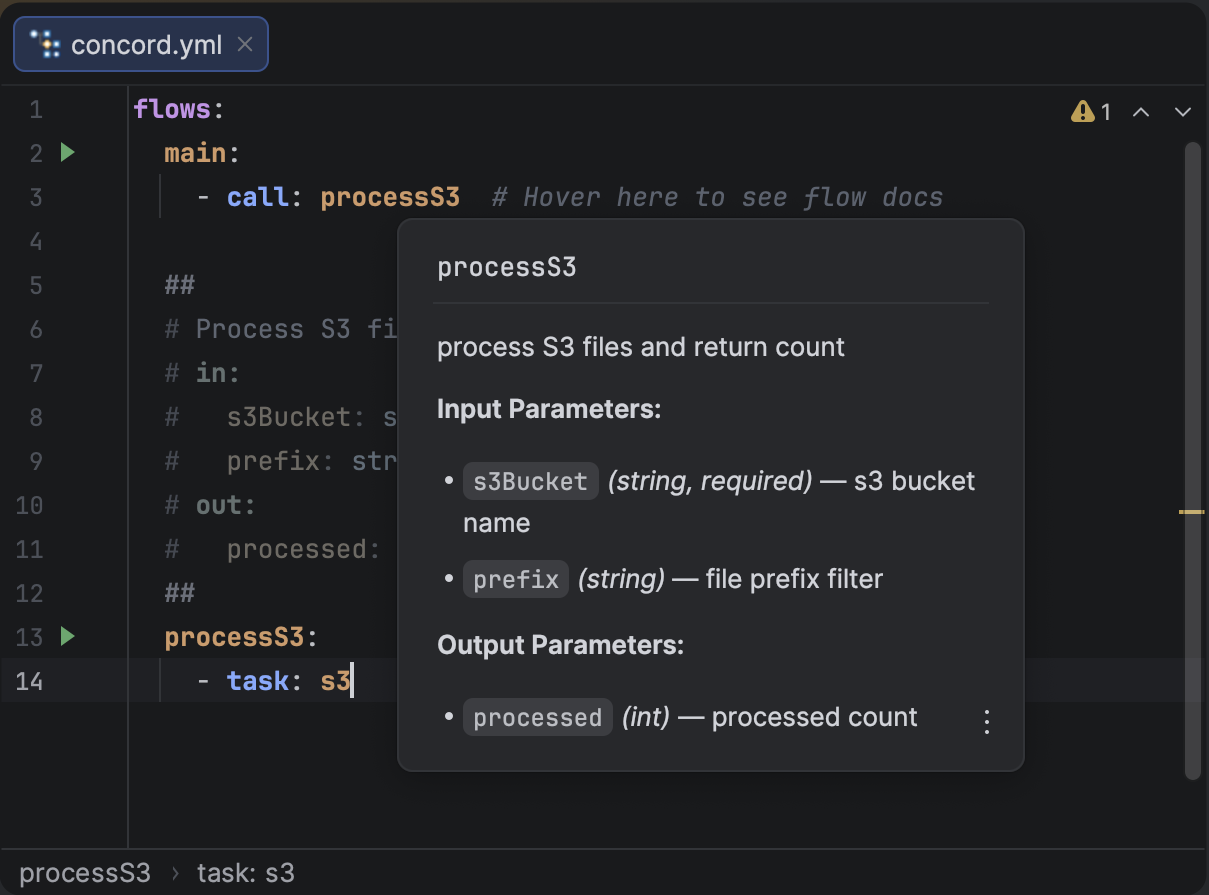
Hover documentation for a flow call showing parameters from a documentation block.
Task Documentation
When you hover over a task name in a task step, the plugin shows documentation extracted from built-in task schemas:
- Task description explaining what the task does
- Input parameters with types, required/optional flags, and descriptions
- Output parameters with the same details
- Enum values with descriptions, when a parameter accepts a fixed set of values
flows:
  main:
    - task: concord  # Hover here to see task docs
      in:
        action: start
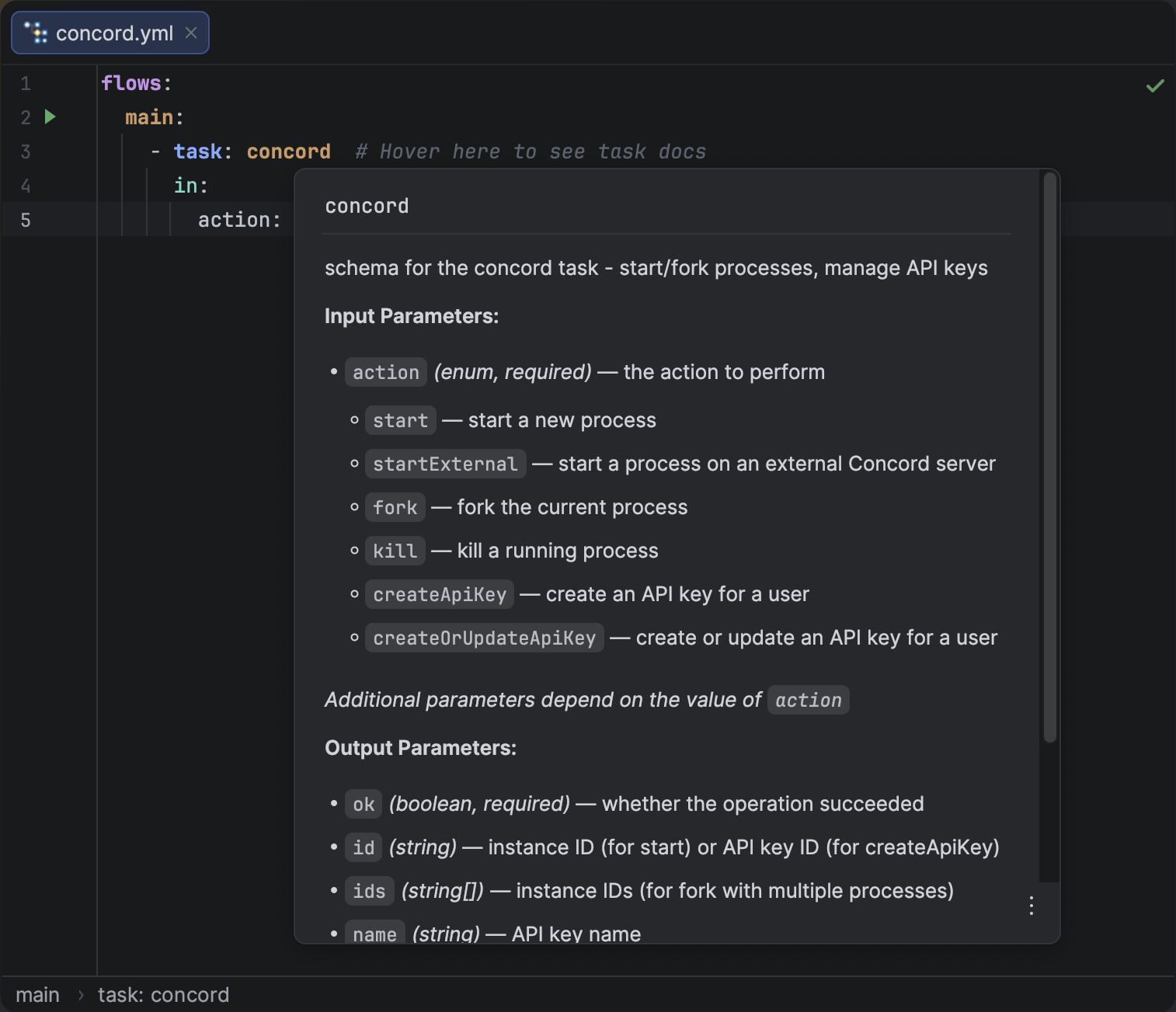
Hover documentation for a task showing input and output parameters from the task schema.
Conditional Parameters
Some tasks have parameters that vary depending on the value of a discriminator key (e.g. action). The plugin handles this smartly:
-
Few conditional parameters: all parameters are shown, grouped by condition.
Input Parameters:
action(enum, required) — action to performmode(enum) — execution mode
When action = process, mode = sync:
timeout(integer) — timeout in seconds
When action = upload:
destination(string) — upload destination path
-
Many conditional parameters: only the discriminator key is shown with a note that additional parameters depend on its value.
Input Parameters:
action(enum, required) — the action to perform
Additional parameters depend on the value of
action
This keeps the popup readable for complex tasks like concord that have dozens of parameters across different actions.
Task Parameter Documentation
You can also hover over individual keys inside a task's in block to see documentation for that specific parameter:
flows:
  main:
    - task: http
      in:
        url: "https://api.example.com"  # Hover over 'url' key
        method: GET
Hovering over the url key shows:
url
Type:
string|expressionURL to fetch
YAML Key Documentation
Hovering over any Concord YAML key shows a description of that key's purpose in context. This works for top-level sections, step types, and their properties:
configuration:      # Hover: process configuration
  entryPoint: main  # Hover: flow to run on process start

flows:
  main:
    - if: ${cond}   # Hover: conditional step
      then:
        - log: "yes"
How to Use
- Keyboard: Place the caret on an element and press CtrlQ.
- Mouse: Hover over an element and wait briefly for the popup to appear.
- Pin: Click the pin icon in the popup corner to keep it visible while you navigate.
Documentation popups are available in the completion list too — for YAML keys, task names, and task parameters. See Quick Documentation in Completion for details.