Run Configurations
The Concord IntelliJ Plugin allows you to execute Concord flows locally directly from the IDE. This is powered by the Concord CLI, enabling rapid feedback loops during development without pushing changes to the server.
Prerequisites
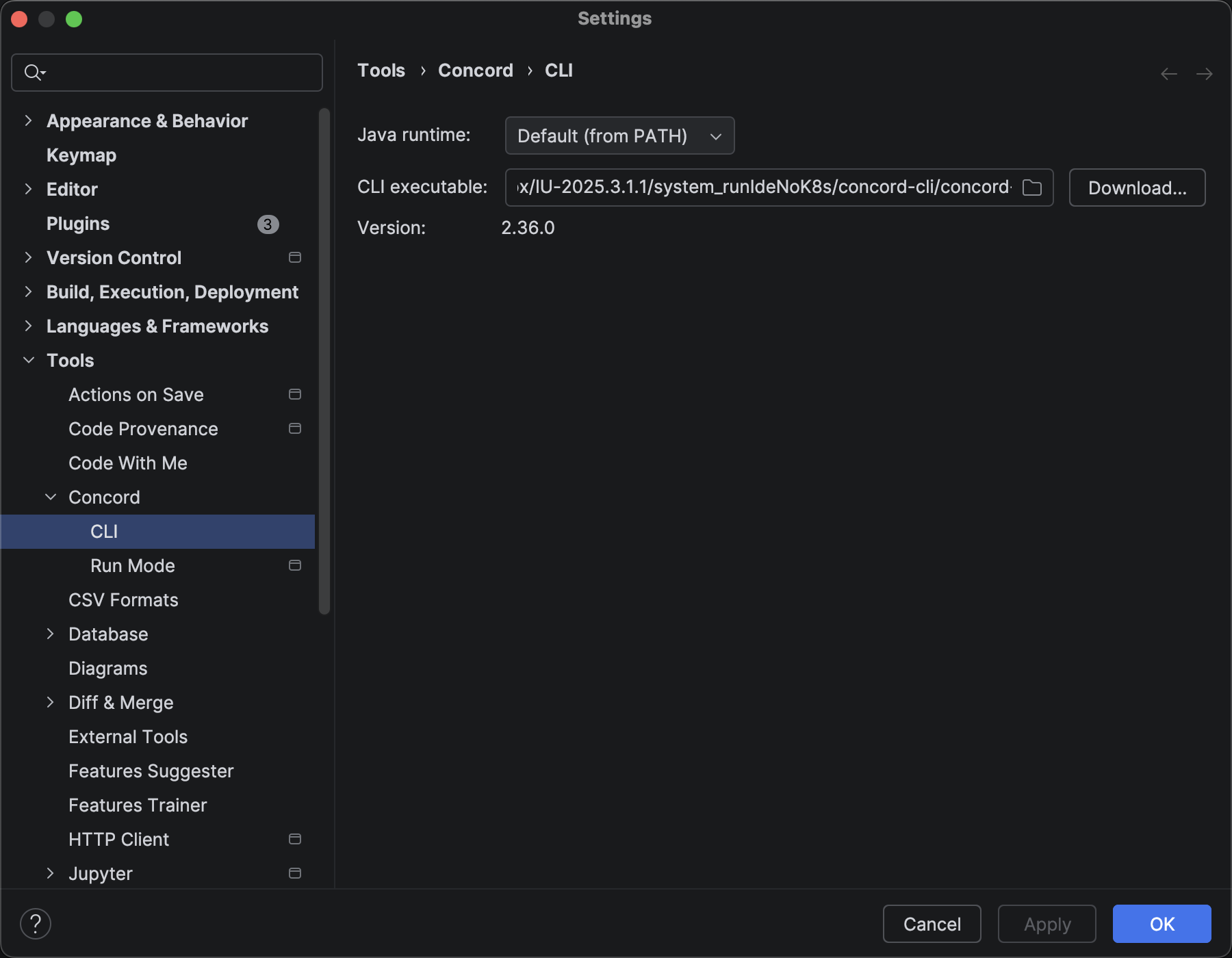
Before running flows, you need to configure the Concord CLI.
- Open Settings | Tools | Concord CLI.
- Either:
- Download: Click "Download..." to fetch the CLI directly from Maven Central. The plugin will download and configure it automatically.
- Manual path: If you already have the CLI installed, specify the path to the executable.
- The plugin validates the path and displays the detected version.
Running a Flow
There are multiple ways to start a flow execution.
1. Gutter Icons
The easiest way to run a specific flow is using the Run icon in the editor gutter (left margin) next to the flow definition.
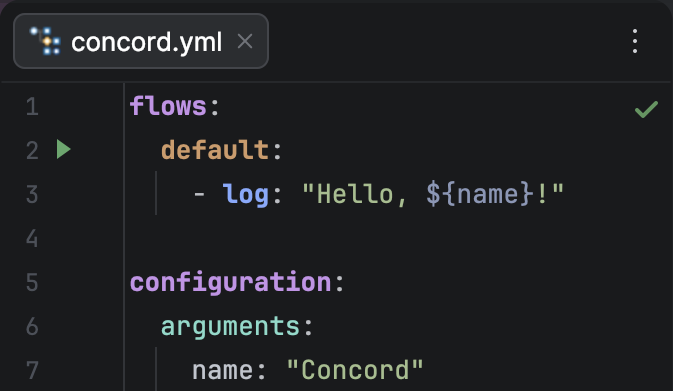
Clicking the icon will create a temporary run configuration and start the flow immediately.
2. Context Menu
Right-click anywhere inside a flow definition and select Run <flowName>.
3. Run Configuration Dialog
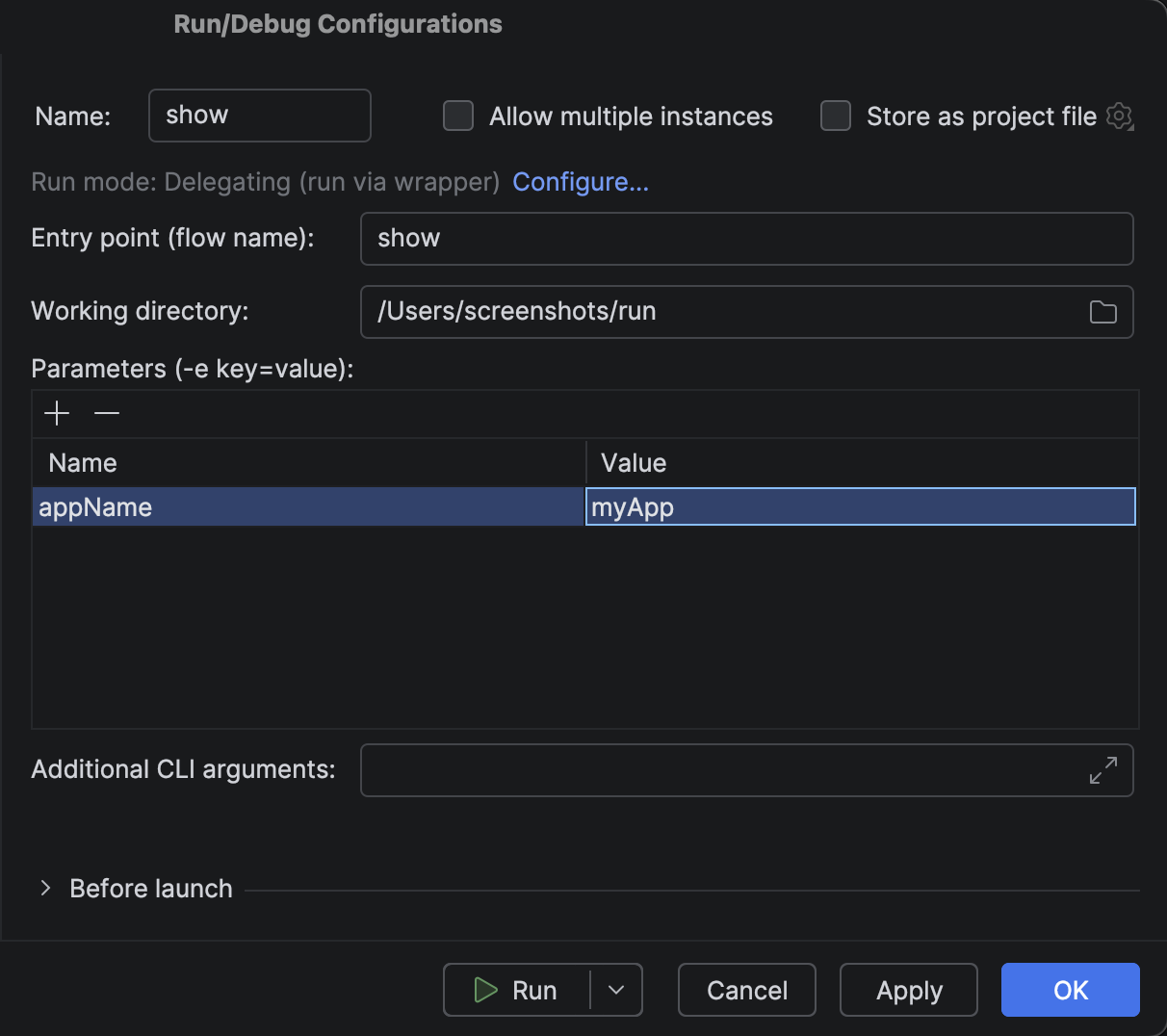
You can manually create and edit configurations via Run | Edit Configurations.... Click the + button and select Concord.
Configuration Options
When editing a Concord Run Configuration, you can customize the execution environment:
- Entry Point: The name of the flow to execute.
- Working Directory: The root directory for the execution (usually the folder containing
concord.yml). - Parameters: Process arguments passed to the execution (accessible via
${...}in the flow). - Additional Arguments: Any extra flags to pass directly to the CLI command (e.g.,
--verbose).
Execution Modes
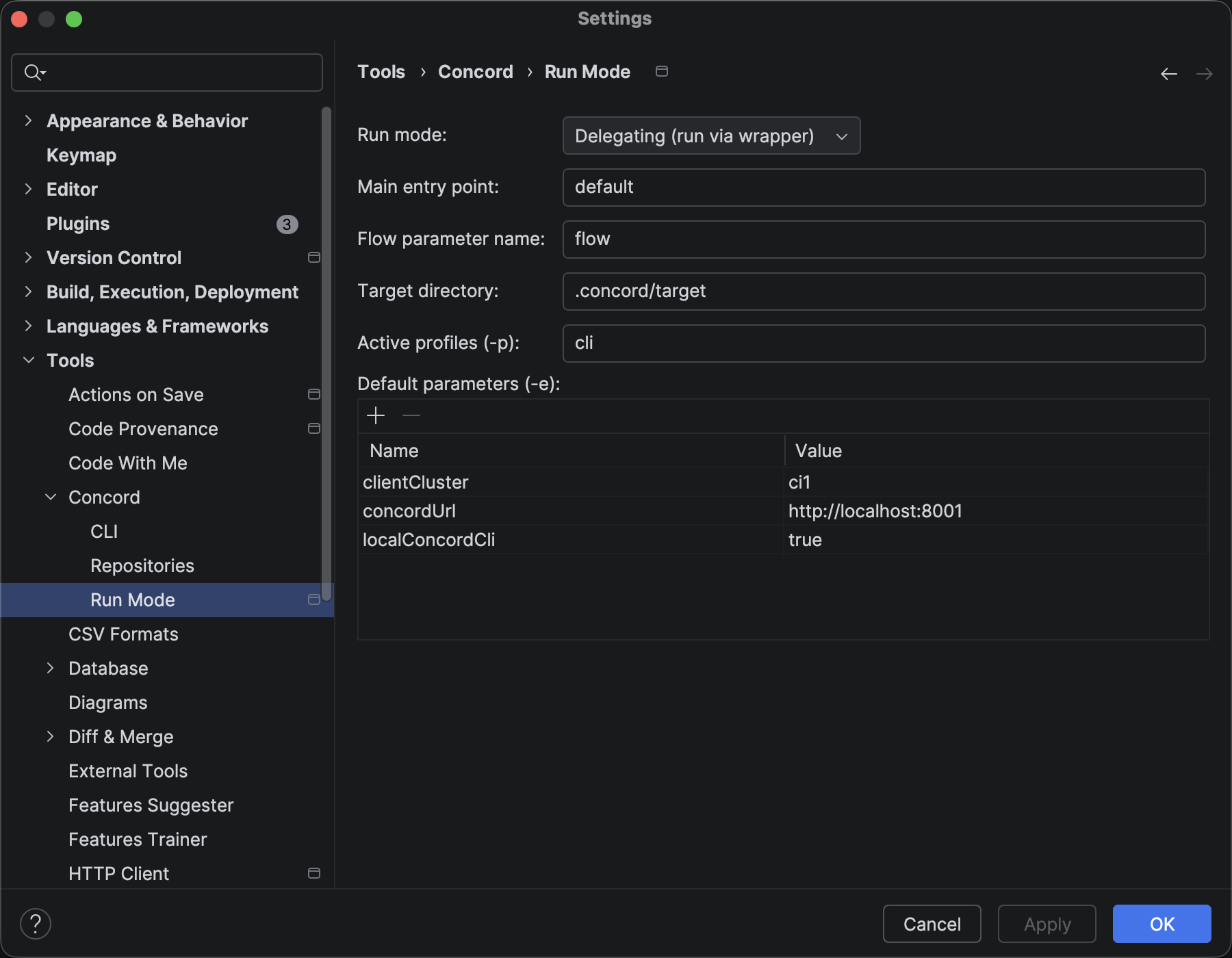
The plugin supports two distinct execution modes, which can be configured globally in Settings | Tools | Concord Run Mode.
Direct Mode (Default)
In this mode, the selected flow is executed directly as the entry point.
- Command:
concord run --entry-point <flowName> - Use case: Testing independent flows or simple processes.
Delegating Mode
In this mode, the plugin always runs a specific "Main" entry point (e.g., a main flow) and passes the actual target flow name as a parameter.
- Command:
concord run --entry-point <MainEntryPoint> -e <FlowParamName>=<TargetFlowName> - Use case: Complex projects where a wrapper flow handles initialization, logging, or error handling before calling the target business logic.
Configuration:
- Main Entry Point: The flow that acts as the wrapper (default:
default). - Flow Parameter Name: The variable name used to pass the target flow (default:
flow).
Interactive Console
The execution output is displayed in the Run tool window. The console supports:
- ANSI Colors: Full color support for logs.
- Hyperlinks: Error messages in the output (e.g.,
(concord.yml): Error @ line 10) are clickable and navigate directly to the source code location.