Concord Tool Window
The Concord plugin adds a dedicated Concord tool window to IntelliJ IDEA, providing a structural view of all Concord project scopes detected in your workspace.
Overview
The Concord tool window allows you to:
- View all active Concord scopes (defined by
concord.yamlfiles). - See the root file, dependencies, and resource files for each scope.
- Navigate quickly to any file or dependency declaration.
- Visualize the hierarchy of your Concord projects.
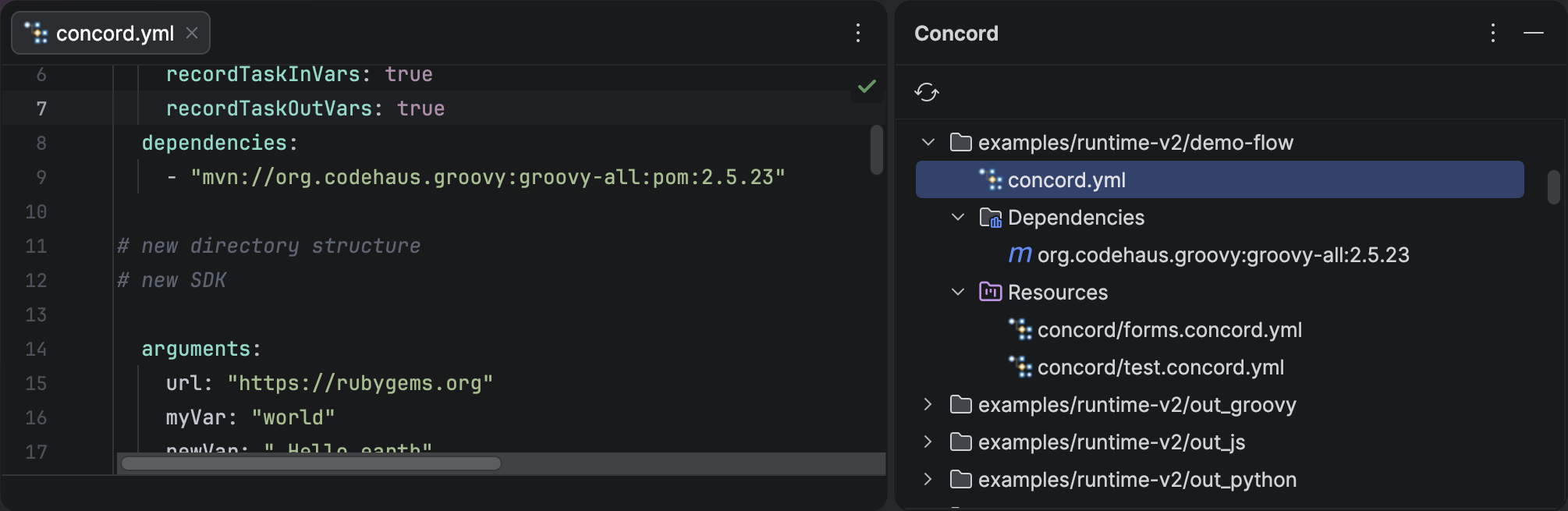
Concord Tool Window showing project scopes with dependencies and resource files.
Using the Tool Window
- Open the tool window by clicking on Concord in the tool window bar (usually on the right or bottom), or via View | Tool Windows | Concord.
- The tree view displays a list of detected Concord scopes.
- Expand a scope node to see its root file, dependencies, and resource files.
- Double-click on any node to navigate to the corresponding file or dependency declaration.
- Use the Refresh button in the toolbar to manually reload the tree (though the plugin tracks changes automatically).
Tree Structure
Each scope in the tree has the following child nodes:
Root File
The concord.yaml (or .concord.yml, etc.) file that defines the scope. Double-click to open it in the editor.
Dependencies
Lists all Maven dependencies declared in the scope's configuration.dependencies and configuration.extraDependencies
sections (including those inside profiles).
Each dependency is displayed as a groupId:artifactId:version string. Double-click a dependency to navigate to its
declaration in the YAML file. If the same dependency is declared in multiple files within the scope,
a popup lets you choose which occurrence to navigate to.
Dependencies are used by the plugin to provide task name completion.
Resources
Lists all YAML resource files that belong to the scope (files in the concord/ directory or matched by
the resources directive). Double-click any file to open it in the editor.
File paths are shown relative to the scope root directory.
Automatic Updates
The tool window listens for changes in your project structure (like adding or removing concord.yaml files
or modifying dependency declarations) and updates automatically.