Navigation
The Concord IntelliJ Plugin makes navigating large, multi-file projects effortless. It treats flow names and calls as first-class symbols, allowing you to jump between definitions and references instantly.
Go to Declaration
The most common way to navigate is jumping from a call step to the flow's definition.
- Shortcut: CtrlB
- Mouse: Ctrl + Click on the flow name.
This works even if the flow is defined in a different file or module, as long as it's within the same Scope.
Expression Variables
Ctrl + Click on a variable name inside a ${...} expression to jump to where it was declared. This works for all variable sources:
- Arguments — jumps to the key in
configuration.arguments - Flow parameters — jumps to the parameter in the flow's Documentation Block
- Set variables — jumps to the key in the set step
- Step out variables — jumps to the
outfield of task, expr, call, script, try, block, and parallel steps
configuration:
  arguments:
    appName: "my-app"

flows:
  main:
    - task: concord
      out: result
    - log: "${appName}            ${result}"
    #         ^ Cmd+Click jumps    ^ Cmd+Click jumps
    #         to arguments           to out: result
Expression Properties
Ctrl + Click on a property name in a dot-access chain (e.g., host in ${config.db.host}) to jump to the corresponding YAML key in the source mapping. The plugin walks the property chain from the base variable's declaration through each nested mapping to find the target key.
This works for variables declared in set steps and configuration.arguments -- any source where the variable's value is a YAML mapping with named keys.
flows:
  main:
    - set:
        config:
          db:
            host: "localhost"
            port: 5432
    - log: "${config.db.host}"
    #                   ^ Cmd+Click jumps to the
    #                     "host" key in the set step
Go to Symbol
Quickly find and jump to any flow, form, or trigger by name across your entire project.
- Shortcut: CtrlAltShiftN
- Search Everywhere: Press
Double Shiftand start typing the name of a flow.
Related Symbol
Quickly navigate from any Concord file to its associated root concord.yaml file. This is especially useful in large projects where files are deeply nested.
- Shortcut: CtrlAltHome
- Menu: Go to Navigate > Related Symbol
If a file belongs to multiple Scopes, a popup will allow you to choose which root to navigate to.
Breadcrumbs
As you navigate through deep YAML structures, breadcrumbs at the bottom of the editor help you stay oriented, showing you exactly which flow and step you are currently editing.
Example
Jumping to a Flow
Instantly jump from a call site to the implementation, even across the project:
Hold Ctrl and hover over a flow name in a call step. Click the link to jump to its definition.
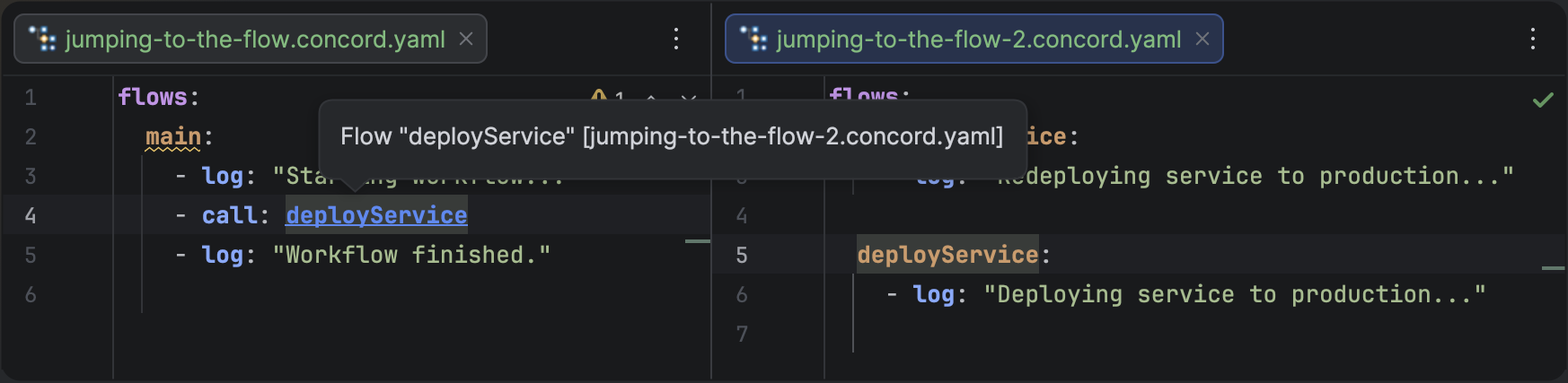
Jumping from a call step to a flow definition in another file.
The plugin indexes all flow names in your project, so navigation is nearly instantaneous even in codebases with hundreds of files.